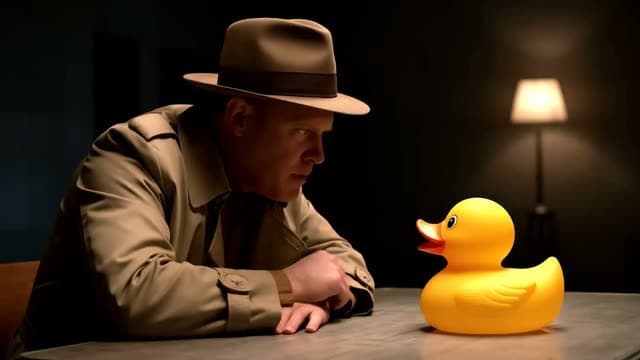
Your first clip looks great. The detective has a grey trench coat, short dark hair, and a scar over one eyebrow. Then you generate the second clip, and the coat is brown, the hair is longer, and the scar is gone. By the fifth clip you have five different people who happen to share a job.
Every generation starts from zero. The model does not remember the last clip, so anything you do not pin down, it invents again. The fix is to pin down as much as you can, with text, with images, and with seeds where the model supports them. This guide covers each method in the order you should use it.
Why Characters Drift Between Clips
An AI video model reads your prompt and fills every gap with its own best guess. "A young woman in a jacket" leaves dozens of gaps: her age, her face shape, her hair, the jacket's color and cut, the light on her skin. Each new generation fills those gaps differently.
So consistency is mostly about closing gaps. The fewer choices you leave to the model, the less room it has to change your character. There are three tools for that:
- Words: a fixed text description you reuse word for word.
- Images: a reference frame that shows the model exactly what the character looks like.
- Seeds: a number that repeats the model's random starting point, on models that accept one.
Use all three where you can.
Step 1: Write a Character Sheet
Before you generate anything, write a short character sheet. This is a block of text that describes the character in fixed, concrete terms. You will paste it into every prompt without changes.
A good character sheet covers four areas.
Face and body
Age range, face shape, skin tone, eye color, hair color, hair length, hair style, build, and one or two distinctive marks. A scar, a freckle pattern, or round silver glasses gives the model a specific detail to repeat, and gives you a quick way to spot drift.
Wardrobe
Name each item, its color, and its material. "A mustard-yellow wool beanie, a navy canvas work jacket with brass buttons, a white t-shirt" is far more stable than "casual clothes".
Voice and manner
If you generate clips with audio, describe the voice: pitch, pace, accent, and mood. "A calm, low voice with a slight rasp, speaks slowly" gives every clip the same target. If you add the voice later in editing, leave this part out of the video prompt.
Style
The visual look of the world the character lives in: realistic, 3D animated, anime, film grain, color grade. A character in a different style reads as a different character.
Example character sheet
MAYA: a woman in her early thirties with an oval face, warm brown skin, dark brown eyes, and shoulder-length black curly hair tied back with a red scrunchie. Small gold hoop earrings. Thin silver scar across her left eyebrow. She wears a mustard-yellow wool beanie, a navy canvas work jacket with brass buttons, and a plain white t-shirt. Calm, low voice with a slight rasp; she speaks slowly and smiles with one side of her mouth. Realistic cinematic style, soft natural light, gentle film grain.
Keep the sheet to one short paragraph, like the example. A sheet that is too thin leaves gaps; a sheet that is too long buries the key details under the scene.
Step 2: Reuse the Exact Phrases
The biggest mistake after writing a sheet is paraphrasing it. You write "mustard-yellow beanie" in clip one and "yellow knit hat" in clip two. To you, they are the same. To the model, they are two different prompts with two different results.
Rules for reuse:
- Copy and paste the sheet. Do not retype it from memory.
- Keep the same order. Put the character sheet at the start of every prompt, then add the scene and the action after it.
- Change only the scene. The location, the action, and the camera move change from clip to clip. The character text does not.
Example prompts with a reused sheet
MAYA: a woman in her early thirties with an oval face, warm brown skin, dark brown eyes, and shoulder-length black curly hair tied back with a red scrunchie. Small gold hoop earrings. Thin silver scar across her left eyebrow. She wears a mustard-yellow wool beanie, a navy canvas work jacket with brass buttons, and a plain white t-shirt. Realistic cinematic style, soft natural light, gentle film grain.
Scene: Maya stands at a food truck window on a rainy evening and hands a paper cup of coffee to a customer. Medium shot, slow push in. She says, "Careful, it's hot." Rain on the metal roof, quiet street ambience.
MAYA: (same sheet, pasted word for word)
Scene: Early morning. Maya unlocks the side door of the food truck and steps inside, switching on a string of warm lights. Wide shot from across the street, camera static. No dialogue. Birds and distant traffic.
In your real prompts, paste the full sheet in place of "same sheet". The placeholder above is only to save space in this article.
Step 3: Anchor the Look With a Reference Image
A reference image is a stronger anchor than text, because the model can see the face instead of imagining it.
The workflow:
- Create one hero image of the character with an image tool, or use a photo you have the rights to use. Pick a clear, front-facing, evenly lit frame where the face and outfit are fully visible.
- Use it as the first frame in image-to-video for each clip. On veo4.dev, the optional reference image of Veo 4 becomes the opening frame of the clip. Kling 3.0, Seedance 2.0, and Wan 2.6 accept an optional first frame, and Wan AI 2.2 always starts from an image you provide.
- Keep the character sheet in the prompt anyway. The image fixes the first frame. The text keeps the character stable as the clip moves away from that frame.
First and last frames
Some models accept both a first frame and a last frame. On veo4.dev, Veo 3.1 and MiniMax H3 have both fields. This is very useful for consistency, because the model has to land on a frame you chose. If both frames show the same character, the clip has two anchors instead of one.
A practical trick: save the last frame of a clip you like and use it as the first frame of the next clip. The character then carries over from one shot to the next.
Keep a small library of references: a front view, a three-quarter view, and a full-body view. Pick the one closest to each new shot, and make the image the same aspect ratio as the clip so the face is not cropped.
For more image-to-video options, see the image-to-video page.
Step 4: Use Seeds Where the Model Supports Them
A seed is the number the model uses as its random starting point. With the same prompt, the same settings, and the same seed, a model that honors seeds gives a very similar result.
On veo4.dev, the seed reaches the model for Happy Horse 1.0 and Wan AI 2.2. You find the field in the advanced settings.
How to use a seed for consistency:
- Generate a few versions with random seeds.
- Find the one where the character looks right, and note its seed.
- Reuse that seed for the next clips, and change only the scene part of the prompt.
Seeds help most for small variations: the same character and place, a different action or angle. A big change in the scene text changes the result a lot, even with the same seed. On other models, rely on the character sheet and reference images.
Step 5: Plan Shots That Hide Small Differences
Even with every method above, small drift can happen. Good shot planning makes that drift much harder to notice.
- Vary the shot size. A cut from a wide shot to a close-up hides small changes in the outfit, because the viewer expects the frame to change.
- Keep the light the same. A character in warm sunset light and then in cold office light looks like two people, even with the same face.
- Give each clip one action. Complex action means more motion, and more motion means more chance for the face to change mid-clip.
- Use detail shots. A hand on a cup or a shot from behind tells the story without repeating the face.
- Plan the order before you generate. Write a short shot list: shot number, shot size, action, line of dialogue, and the image that anchors the shot. Then generate in that order.
Example shot list
| Shot | Size | Action | Anchor |
|---|---|---|---|
| 1 | Wide | Maya unlocks the food truck at dawn | Hero image as first frame |
| 2 | Medium | Maya makes coffee behind the counter | Last frame of shot 1 |
| 3 | Close-up | Maya smiles and says her line | Front-view reference |
| 4 | Detail | Hands pass the cup to a customer | Text sheet only |
A Consistency Checklist
Run through this list before each generation in a series:
- The character sheet is pasted word for word, at the start of the prompt.
- Wardrobe items have a named color and material.
- The character has at least one distinctive mark.
- The visual style and the light match the earlier clips.
- A reference image or the last frame of the previous clip is attached, where the model accepts one.
- The model, aspect ratio, and resolution match the rest of the series.
- The seed is reused, on models that honor it.
- Each clip has one clear action.
Frequently Asked Questions
Can I get a perfectly identical character in every clip?
Not every time, because generation has some randomness. A fixed sheet and a reference image narrow the variation a lot. Plan to generate more takes than you need and keep the ones that match.
Is a reference image better than a text description?
A reference image is the stronger anchor for the face and outfit. The best results come from using both: the image fixes the look, and the text keeps it stable as the clip moves.
How do I keep the voice the same?
Describe the voice the same way in every prompt: pitch, pace, accent, and mood. Keep lines short. Nothing anchors a voice the way a reference image anchors a face, so pick the takes where the voice matches and regenerate the rest. For a long series, recording or adding the voice in editing gives you full control.
What about two or more characters in one scene?
Write a separate sheet for each character with a clear name, and give each one a different distinctive feature and color. Keep them apart in the frame when you can. Two very similar characters tend to blend.
Start Your Character Series
Write your character sheet, make one strong hero image, and generate your first shot. You can try it now in the AI video generator or go straight to Veo 4 for image-guided clips. When your series is ready to grow, the pricing page shows the plans.
Planning more clips? Read the camera movement prompt guide to direct each shot, and why your AI video looks wrong for fixes when a clip drifts.