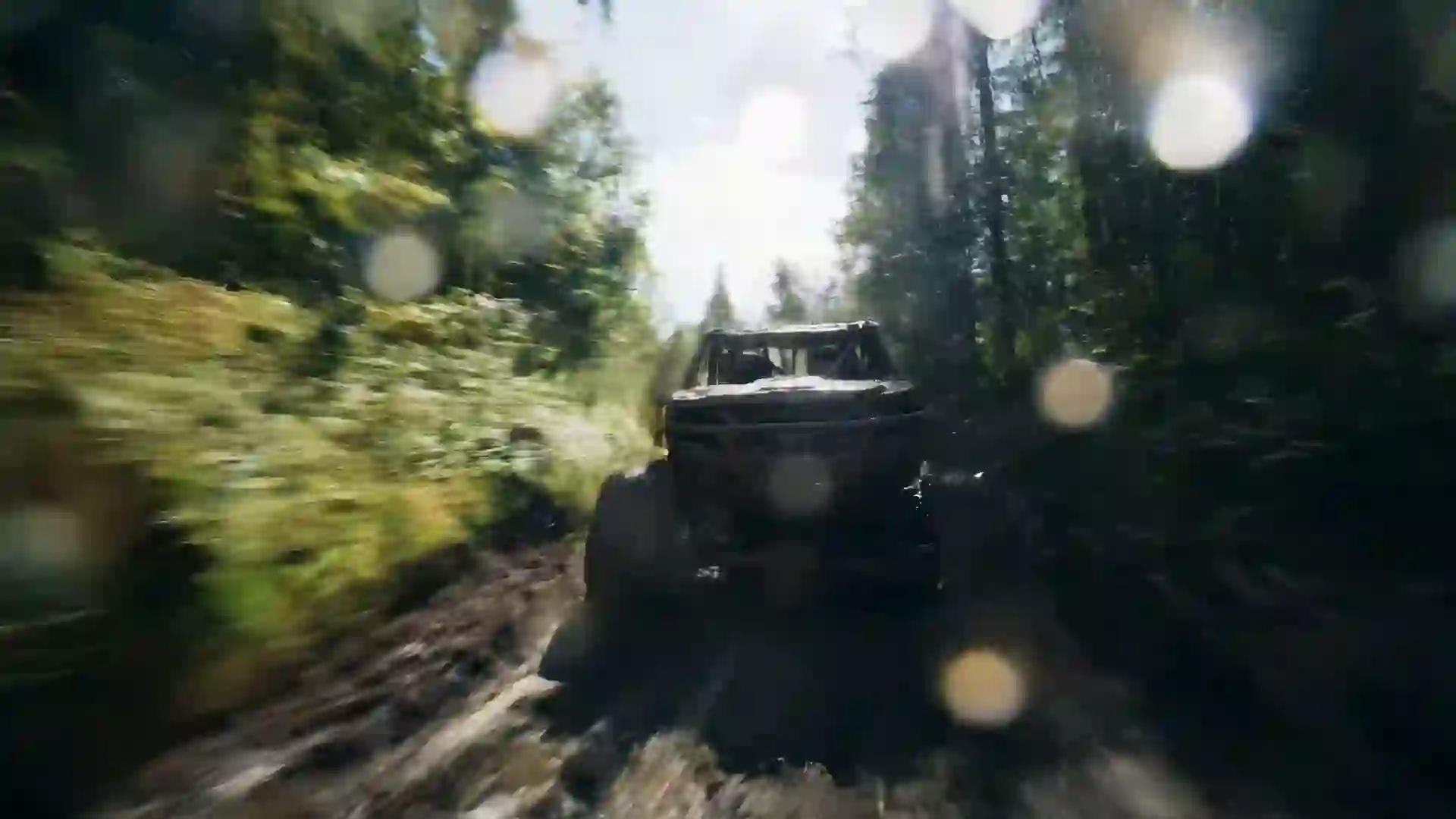

AI Faceless Video Generator
Turn a script line into a b-roll clip for your faceless channel, and sign in to make your first video free.



What an AI Faceless Video Generator Does for Your Channel
An AI faceless video generator creates the visuals for channels where nobody appears on camera. Faceless YouTube and TikTok channels run on narration laid over footage: history explainers, finance breakdowns, true crime recaps, motivational shorts sleep stories and top ten lists. The hard part has always been the footage. Stock libraries repeat the same clips across thousands of channels, and filming takes time you do not have. With Veo 4 you describe a shot, pick a model, and get an original clip that matches the line of script it sits under.
Be clear about what this tool is. Veo 4 generates video clips, typically 4 to 10 seconds long, with Wan 3.0 reaching up to 30 seconds. It does not record a voiceover, clone a voice, sync lips or put a presenter on screen. The usual workflow is simple: write your script, record narration with the voice tool you already use, generate a b-roll clip for each beat here, then line everything up in any video editor. The clips are the visual layer, and you stay in control of the story.
Because each clip comes from your own prompt, your channel gets a consistent look that stock footage rarely gives. You can lock a palette, lens and lighting style across an episode, then reuse the same prompt structure next week. Some models, such as Veo 4 and Veo 3.1, also generate ambient sound like rain or wind that can sit under your narration. New users get one free 5-second 480p video with Seedance 1.5 Lite after signing in, so you can test a faceless b-roll shot before you choose a plan.
Features Built for Faceless Video Creators
The wizard above is set up to produce original b-roll that fits narration-driven content.
Script line to b-roll clip
Paste a sentence from your script, describe what the viewer should see, and generate a clip that illustrates it. A line about ancient trade routes becomes a caravan crossing dunes at sunset. A line about compound interest becomes coins stacking in slow motion. Each clip is new footage.
Vertical and horizontal formats
Choose 9:16 for TikTok, Reels and YouTube Shorts, 16:9 for long-form YouTube, or 1:1 for feeds. Setting the ratio before you generate frames the subject for the screen from the start, so you never have to crop a wide shot later and lose the part of the frame that mattered.
Image-to-video for recurring visuals
Upload a reference image you own, such as a mascot, a map or a thumbnail illustration, and animate it. This keeps a recurring visual recognizable across episodes, which matters for faceless channels that rely on a mascot, a signature setting or a branded look instead of a host.
Style, filter and composition controls
Set a style such as cinematic, documentary, 3D animated or hand-drawn anime, add a filter for color mood, and pick a composition like a wide establishing shot or a close-up. Reusing these choices gives every episode the same visual signature, which helps viewers recognize your channel in a crowded feed.
AI Enhanced Prompt
Short ideas like 'dark forest at night' give generic results. Turn on AI Enhanced Prompt and the wizard rewrites your idea with camera movement, lighting and texture. You can edit the rewrite before generating, so it works as a starting point that supports your own direction rather than replacing it.
Ten models for different moods
Use Veo 4 or Veo 3.1 for realistic footage and generated sound, Kling 3.0 or Hailuo 2.3 for stylized motion, Wan 3.0 for clips up to 30 seconds, and Seedance 1.5 Lite to try the workflow for free. Switching between models only takes one click in the wizard.
Faceless Video Prompt Examples
Copy any of these b-roll prompts into the wizard and adjust the subject to fit your script.
History explainer opener
A slow aerial push over an ancient stone city at dawn, mist drifting between temple rooftops, empty market streets, soft golden light over distant mountains, wide establishing shot, documentary style, muted earthy palette, gentle film grain.
Personal finance b-roll
Close-up of gold coins dropping one by one onto a growing stack on a dark wooden desk, shallow depth of field, warm desk lamp side light, slow motion, clean minimal composition, calm focused mood, subtle reflections on coin edges.
True crime atmosphere
A quiet suburban street at night after rain, one streetlight flickering, wet asphalt reflecting light, camera slowly dollying toward an empty house with a single lit window, cold blue and amber grade, tense cinematic mood, light fog.
Motivation short
A lone runner seen from behind climbing a steep mountain trail at sunrise, face not visible, breath showing in cold air, camera tracking low behind, bright orange sky, high contrast, vertical framing, determined energetic mood.
Sleep story scene
A small wooden cabin beside a still lake under a full moon, warm light in the window, gentle snowfall, slow static wide shot, soft blue and silver palette, dreamy painterly style, peaceful atmosphere, quiet ambient snowfall sound.
Tech explainer visual
Macro shot of a circuit board with small pulses of light traveling along copper traces, camera gliding slowly across the surface, dark background, cool cyan and violet lighting, sharp detail, clean futuristic style, smooth steady motion.
How to Make Faceless Videos with AI
Four steps in the wizard turn a line of your script into a usable b-roll clip.
- 1
Describe the shot for one script beat
Take one sentence of narration and write what the viewer should see while it plays: subject, action, setting and mood. Turn on AI Enhanced Prompt if you want the wizard to add camera and lighting detail, then edit the result to match your idea.
- 2
Add a reference image if you have one
Upload an image to animate it, such as your channel mascot, a map or an illustration you created. This step is optional. Skip it for pure text-to-video, or use it when the same visual element must appear in several clips across an episode.
- 3
Set style, ratio and duration
Pick a style and filter that match your channel look, choose a composition, then set 9:16 for Shorts and TikTok or 16:9 for long-form YouTube. Choose a duration that covers the narration line; most models produce 4 to 10 seconds.
- 4
Pick a model and generate
Choose a model for the look you want, then generate. Credits are deducted before generation and refunded if it fails. Download the MP4, place it under the matching narration in your editor, and repeat these steps for the next beat of your script.
Who Uses an AI Faceless Video Generator
Faceless creators in many niches use generated b-roll to replace stock footage and filming.
Faceless YouTube documentaries
Long-form channels about history, science or mysteries need dozens of visuals per episode. A generated clip for each section gives the video a unique look, and Wan 3.0 clips of up to 30 seconds can hold an establishing shot while the narrator sets the scene.
TikTok and Shorts story channels
Vertical channels that share facts, short horror stories or life lessons move fast. Generate 9:16 clips with strong movement in the first second, then cut them to the rhythm of your voiceover. A new visual every few seconds keeps viewers watching even without a face on screen.
Finance and business explainers
Budgeting, investing and economics are abstract and hard to film. Generated b-roll can show symbolic visuals such as coins, city skylines or a quiet home office, giving the narration something concrete to sit on without relying on the same overused stock clips other channels use.
Meditation and sleep content
Relaxation channels need slow, calm visuals that last. Prompt for static or gently drifting shots of lakes, forests, rain on windows or night skies. Some models generate ambient sound such as rain or wind, which you can blend with your music or narration in an editor.
Top ten and list videos
List videos need a distinct visual for each entry. Write one prompt per item, keep the same style and filter across all of them, and generate the set in one session. The shared style makes the list feel like one production rather than clips gathered from many sources.
Course and tutorial channels
Educators who prefer not to appear on camera can add useful visual context between screen recordings and slides. A short clip of a laboratory, a busy city or a historical scene breaks up long lessons and helps learners remember the point the narration is making at that moment.
Prompt Tips for Faceless Channel B-Roll
Keep faces out of frame
Faceless content works best when viewers focus on the narration, not on a stranger. Ask for people seen from behind, in silhouette, at a distance or as hands only. Phrases like 'face not visible' or 'figure in silhouette against the window' keep attention on the story.
Match each clip to one script beat
Write one prompt per sentence or idea, not one prompt per video. A clip that shows exactly what the narrator says feels intentional. Keep script lines next to their prompts so you can regenerate one shot without redoing the episode.
Lock a channel palette and lens
Pick two or three color words and one lens description and repeat them in every prompt, for example 'muted teal and amber, 35mm lens, soft film grain'. Different scenes then look like they belong to the same channel, which builds recognition over many uploads.
Use slow camera movement under narration
Fast cuts and shaky motion compete with the voiceover. For explainer sections, ask for a slow push in, a gentle pan or a steady aerial drift. Save fast motion for hooks and transitions, where energy helps, and keep the explanation sections calm and easy to follow.
Plan for loops and text overlays
A clip that starts and ends on a similar frame can loop under a long narration section. Prompt for static compositions with small motion, like drifting fog or candle flicker, and leave empty space in the frame if you plan to add captions or text overlays later.
AI Faceless Video Generator FAQ
Answers to common questions from faceless YouTube and TikTok creators.
Is the AI faceless video generator free?
New users get one free 5-second 480p video with Seedance 1.5 Lite after signing in, enough to test a b-roll shot for your channel. Paid plans unlock the other models, longer durations and higher resolutions. Credits are deducted before each generation, and failed generations are refunded automatically, so you only pay for clips that are actually delivered.
Does Veo 4 add a voiceover to my faceless video?
No. Veo 4 generates the visual clips only and has no voiceover, voice cloning or text-to-speech tool. Record your narration yourself or use the voice tool you prefer, then combine it with the clips in any editor. Some models, such as Veo 4 and Veo 3.1, generate ambient sound that can work as a background layer.
Which model is best for faceless YouTube b-roll?
For realistic documentary-style footage, Veo 4 and Veo 3.1 are strong choices, and they can also generate sound. For stylized or animated looks, try Kling 3.0 or Hailuo 2.3. Wan 3.0 suits one long establishing shot of up to 30 seconds. Seedance 1.5 Lite is the free model for testing prompts.
How long are the clips, and can I make a full video?
Clips are usually 4 to 10 seconds, and Wan 3.0 can produce up to 30 seconds. A full faceless video is built by generating one clip per script beat and placing them under your narration in an editor. A ten-minute video needs many clips, so planning prompts per section saves time.
What aspect ratio should I use for TikTok and YouTube?
Use 9:16 for TikTok, Instagram Reels and YouTube Shorts, and 16:9 for regular YouTube videos. Set the ratio in the wizard before generating so the subject is framed correctly. If you publish both formats, generate separate versions, because cropping a wide clip into a vertical one often cuts out the main subject of the shot.
Can I monetize faceless videos made with these clips?
Paid plans download MP4 files without a watermark. For details about how you may use generated videos, including on monetized channels, check the terms of service for usage rights. Platforms also have their own original content policies, so your own script, narration and editing help your videos stand on their own.
Can I animate my own channel illustrations?
Yes. Upload a reference image in the wizard to use image-to-video. This works well for a channel mascot, a recurring illustration, a map or a diagram you made. Describe the motion you want, such as a slow zoom or drifting clouds, and the model animates the image while keeping its main look.
How do I keep my faceless channel visually consistent?
Reuse the same style, filter and composition settings for every clip in an episode, and repeat the same palette and lens words in each prompt. Keep your best prompts as templates. Using one model per episode also helps, since different models interpret lighting, motion and color in slightly different ways.
Start Building B-Roll for Your Faceless Channel
Write a prompt for your next script line and generate your first clip. New users get one free video after signing in.
Last updated October 7, 2026 · By Long Cheng