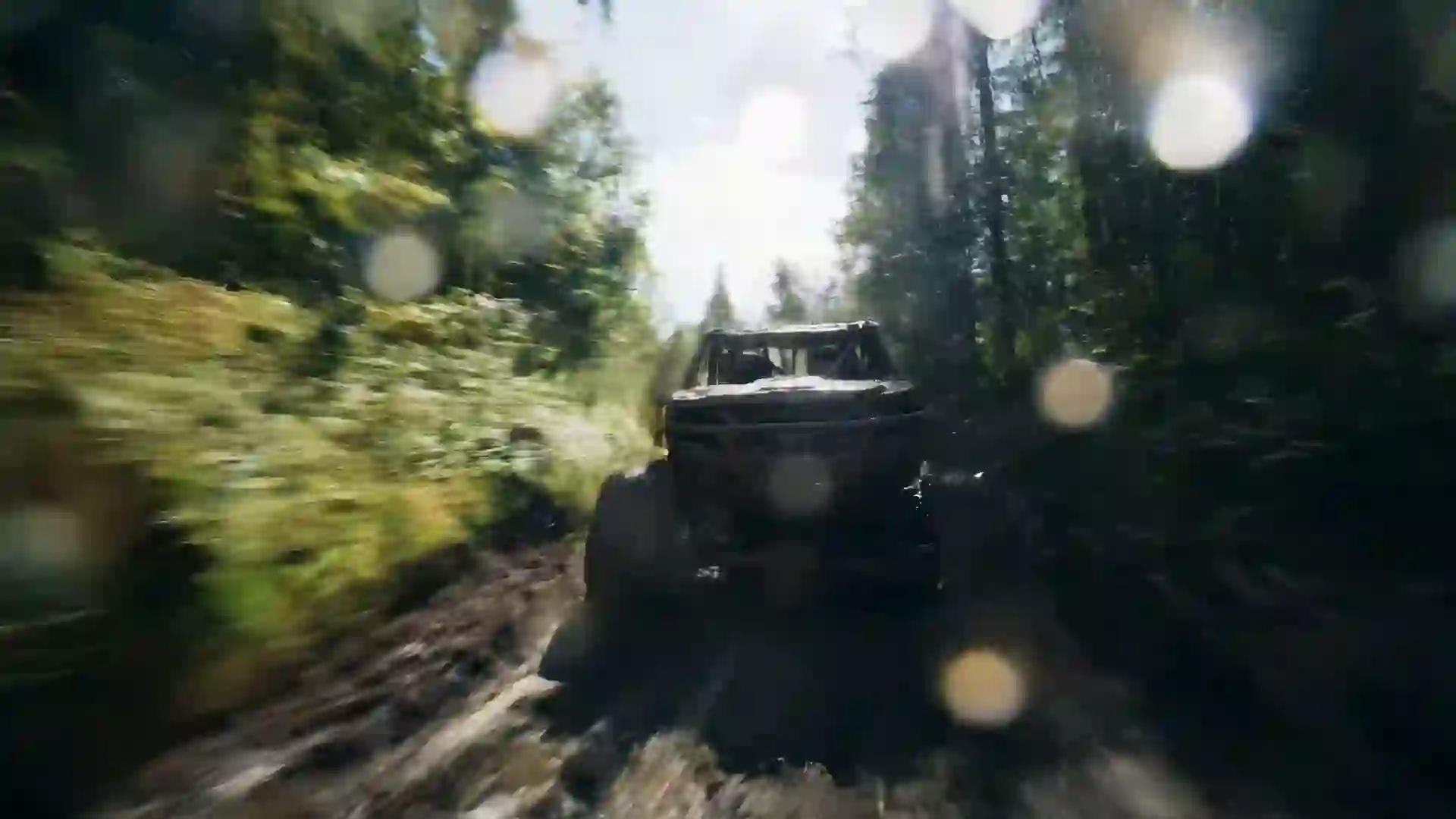

AI Realistic Video Generator
Generate lifelike video footage from text or a photo, with one free video for new users after sign-in.



What an AI Realistic Video Generator Can Do
The AI realistic video generator on Veo 4 creates short clips that look like they were filmed with a real camera. Describe a scene, such as steam rising from a cup of coffee on a cafe table, a cyclist riding through a city at rush hour, or waves breaking on a rocky coast at dawn, and the model renders natural light, believable physics and real-world textures such as wood, skin and glass. Each clip typically runs 4 to 10 seconds, which suits b-roll, product shots, social posts and establishing shots for longer videos and presentations.
Realism depends on detail. The most convincing results come from prompts that read like a cinematographer's notes: a specific lens, a real light source, a time of day, the texture of materials and one physically plausible action. A prompt like 'handheld 35mm shot, overcast afternoon light, rain on the window' gives the model concrete, physical cues to work with. You can also upload a photo and animate it with image-to-video, which keeps the real location, product or scene and adds subtle motion such as moving clouds, flowing water or a slow camera push.
For photorealism, Veo 4 and Veo 3.1 are good starting points, and some models generate sound, such as street noise, wind, footsteps or short dialogue. Kling 3.0, Hailuo 2.3 and Seedance 2.0 are also worth testing on realistic scenes with lots of movement, such as sports or busy streets. Wan 3.0 can run up to 30 seconds at 480p for a long continuous shot. New users get one free 5-second 480p video with Seedance 1.5 Lite after sign-in, so you can test a realistic scene before you choose a paid plan for higher resolutions.
Features for Realistic AI Video
These controls help your clips look like real camera footage.
Natural light and physics
The models simulate how light falls on skin, metal, glass and water, and how objects move under gravity. Describe a real light source, such as low winter sun or a single desk lamp, and a plausible action, and the result reads as filmed footage rather than animation.
Photo to realistic motion
Upload a real photo of a place, a product or a scene, and use image-to-video to add natural motion: leaves moving, traffic passing, a slow dolly forward. Starting from a real image anchors the details, which is one of the most reliable ways to get a lifelike result.
Real-world sound on some models
Some models generate sound. Veo 4 and Veo 3.1 can add audio that matches the picture, such as traffic, birds, a crackling fire or a short line of dialogue. Synced ambient sound is a large part of why a clip feels real, even when viewers do not notice it consciously.
Camera and lens control
Write lens and camera details into the prompt: 85mm portrait lens, wide 24mm, macro close-up, handheld, gimbal, drone. Realistic footage has the imperfections of real cameras, such as shallow depth of field, slight shake and lens flare, and the models respond well to these cues.
Formats for real-world use
Generate 16:9 for websites, YouTube and presentations, 9:16 for Reels, TikTok and Shorts, or 1:1 for feeds. Paid plans unlock higher resolutions, and every clip downloads as an MP4 with no watermark on paid plans, ready to drop into an edit next to real footage.
AI Enhanced Prompt for detail
Realistic results need more detail than most people write. AI Enhanced Prompt expands a short idea like 'morning in a bakery' into a full description with light, textures, camera and action. Review the rewrite, keep what fits, and adjust anything that does not match your scene.
Realistic AI Video Prompt Examples
These prompts are written for lifelike results; copy one and change the subject or location.
Cafe morning b-roll
Steam rises from a fresh cappuccino on a marble cafe table by a window, a hand slowly turns the cup, soft morning sunlight from the left, shallow depth of field, blurred street outside, warm neutral tones, shot on a 50mm lens, realistic commercial b-roll.
City cyclist
A woman in a beige trench coat rides a bicycle through a busy European street at rush hour, gimbal tracking shot alongside her, overcast afternoon light, wet cobblestones reflecting shop signs, natural muted colors, slight motion blur, documentary realism.
Rocky coast at dawn
Waves crash against dark volcanic rocks on a rugged coastline at dawn, spray catching the first sunlight, slow drone shot moving along the shore, pale pink and grey sky, foam swirling between the rocks, high-detail realistic nature footage with natural colors.
Workshop hands
Close-up of a carpenter's hands sanding a walnut tabletop in a small workshop, fine dust floating in a beam of window light, handheld 85mm shot with shallow focus, warm wood tones, visible grain and texture, quiet authentic craftsmanship footage.
Rainy night street
A taxi drives slowly down a rain-soaked city street at night, headlights and neon signs reflecting on wet asphalt, pedestrians with umbrellas on the sidewalk, static wide shot from a doorway, cool blue and warm orange light, realistic urban night footage with natural grain.
Kitchen cooking moment
Garlic and sliced onions sizzle in a cast iron pan as a wooden spoon stirs them, oil bubbling, steam rising, overhead camera with a slight push in, warm tungsten kitchen light, rich golden browns, realistic food video with crisp texture detail.
How to Generate Realistic Videos with AI
Follow these four steps to get footage that looks filmed rather than generated.
- 1
Write a camera-ready prompt
Describe the subject, one plausible action, the location, the light source and the lens, as if briefing a camera operator. Turn on AI Enhanced Prompt for extra detail. To keep a real place or product, upload a reference photo and use image-to-video.
- 2
Choose a natural look
Pick a realistic or cinematic style and a subtle filter, since heavy filters make footage look processed. Choose a composition and set the aspect ratio for the platform: 16:9 for YouTube and websites, 9:16 for Reels and TikTok. Then set the duration.
- 3
Pick a model and generate
Start with Veo 4 or Veo 3.1 for photorealism and sound, and compare Kling 3.0, Hailuo 2.3 or Seedance 2.0 for scenes with lots of movement. Wan 3.0 handles takes up to 30 seconds. Credits are deducted first, and failed generations are refunded.
- 4
Check details and download
Look closely at hands, faces, text and physics, which are where realism breaks first. Regenerate with simpler action if anything looks off. Download the MP4 and use it directly, or cut it together with your real footage in any video editor.
Where Realistic AI Video Fits
Lifelike generated clips fill gaps where filming is slow, costly or impossible.
B-roll for videos and podcasts
Creators and editors need cutaway footage: city streets, nature, hands at work, coffee pouring. Generate realistic b-roll that matches the topic of your video instead of searching stock libraries for a clip that almost fits. Match the light and color to your main footage for a seamless cut.
Product and lifestyle ads
Small brands can show a product in a lifelike setting, such as a water bottle on a hiking trail or a candle on a cozy shelf, without a full shoot. Upload a product photo and use image-to-video to keep the real packaging, then add natural camera movement and light.
Real estate and travel
Animate photos of rooms, views and destinations into short videos with gentle camera moves, moving water and drifting clouds. Realistic motion makes a listing or travel post more engaging than still photos. Keep generated clips clearly labeled when they illustrate a real property or place.
Corporate and training videos
Explainers and training modules often need simple realistic scenes: an office meeting, a warehouse aisle, a customer at a counter. Generating these shots is faster than organizing a shoot, and you can match the framing to your script. Add voiceover and captions in your editor.
Film and TV previz
Directors and cinematographers can test a lighting setup, a lens choice or a location mood before a shoot. A realistic previz clip helps the whole team see the plan, and it is quick to try alternatives such as a different time of day or camera height.
News-style explainers
Explainer channels can illustrate general concepts, such as heavy traffic, crop fields in drought or a busy port, with realistic generated footage. Use it for illustration only, never to depict real events or real people, and say clearly on screen that the footage is generated.
Tips for More Realistic AI Videos
Describe a real light source
Name where the light comes from: a window on the left, overcast sky, a single streetlamp, low sun behind the subject. Vague words like 'beautiful lighting' push the result toward a stylized look. Specific, motivated light is the strongest single cue for realism.
Use real lens language
Add a focal length and camera type, such as 'shot on a 35mm lens' or 'handheld documentary camera'. Mention shallow depth of field, slight camera shake or natural film grain. These small imperfections are what make footage look captured rather than rendered.
Keep actions physically simple
Realism breaks most often in complex motion, such as hands tying knots or people dancing in a crowd. Choose one simple, physical action per clip: pouring, walking, turning, waves rolling. Simple motion with real physics looks more convincing than an ambitious action.
Avoid readable text
Signs, labels and screens with specific words are hard to render accurately and draw attention to errors. Keep text out of focus or out of frame, and add any titles in your editor instead. For products, image-to-video from a real photo preserves the label better.
Choose natural color
Ask for natural, muted or neutral colors and avoid heavy filters for realistic work. Oversaturated colors and extreme contrast make clips look artificial. If the clip will sit next to real footage, describe the same time of day and color temperature as your camera footage.
AI Realistic Video Generator FAQ
Questions people ask about generating lifelike video with AI on Veo 4.
Is there a free AI realistic video generator?
Yes, to start. New users get one free 5-second 480p video with Seedance 1.5 Lite after sign-in. For the most realistic results, paid plans unlock Veo 4, Veo 3.1 and the other models, plus longer durations and higher resolutions. Credits are deducted before generation and refunded if a generation fails.
Which model makes the most realistic videos?
Veo 4 and Veo 3.1 are strong choices for photorealistic scenes, and they can generate matching sound. Kling 3.0, Hailuo 2.3 and Seedance 2.0 are also worth testing, especially for scenes with fast movement. Results vary by subject, so run your key prompt on two models and keep the better clip.
Can realistic AI videos have sound?
Some models generate sound. Veo 4 and Veo 3.1 can produce native audio that matches the scene, such as ambient noise, effects and short dialogue. Other models create silent clips. The site has no music library or voice cloning, so add music or narration in your own video editor after download.
Can I make a realistic video from a photo?
Yes. Upload a photo as the reference image and describe the motion you want, such as clouds moving, water flowing or a slow push toward the subject. Image-to-video keeps the details of the real scene or product, which often produces more realistic results than text alone. Use a sharp, well-lit photo.
Can I generate realistic videos of real people?
Do not use real people's likeness, celebrities or public figures without permission. Describe fictional people instead, such as 'a woman in her thirties with short dark hair'. Use realistic footage responsibly, never to show real events that did not happen, and label generated clips when they could be mistaken for real recordings.
How long are realistic AI video clips?
Most clips are 4 to 10 seconds, depending on the model and the duration you choose. Wan 3.0 can generate up to 30 seconds at 480p. For a longer realistic sequence, generate several shots with matching light and color, then edit them together in any video editor and add sound or music.
What aspect ratio works for TikTok and YouTube?
Choose 9:16 for TikTok, Instagram Reels and YouTube Shorts, and 16:9 for standard YouTube videos, websites and presentations. Use 1:1 for square feed posts. Set the ratio before you generate, because the model composes the scene for that frame and cropping later lowers quality and can cut out the subject.
Can I use realistic AI footage in commercial work?
Videos download as MP4 files with no watermark on paid plans. For commercial projects such as ads, client work or paid content, check the terms of service for usage rights. Avoid trademarks, logos and real people in your prompts, and be transparent with clients and viewers that the footage is generated.
Generate Footage That Looks Filmed
Write a camera-ready prompt or upload a photo and create your first realistic clip. New users get one free video after sign-in.
Last updated October 7, 2026 · By Long Cheng