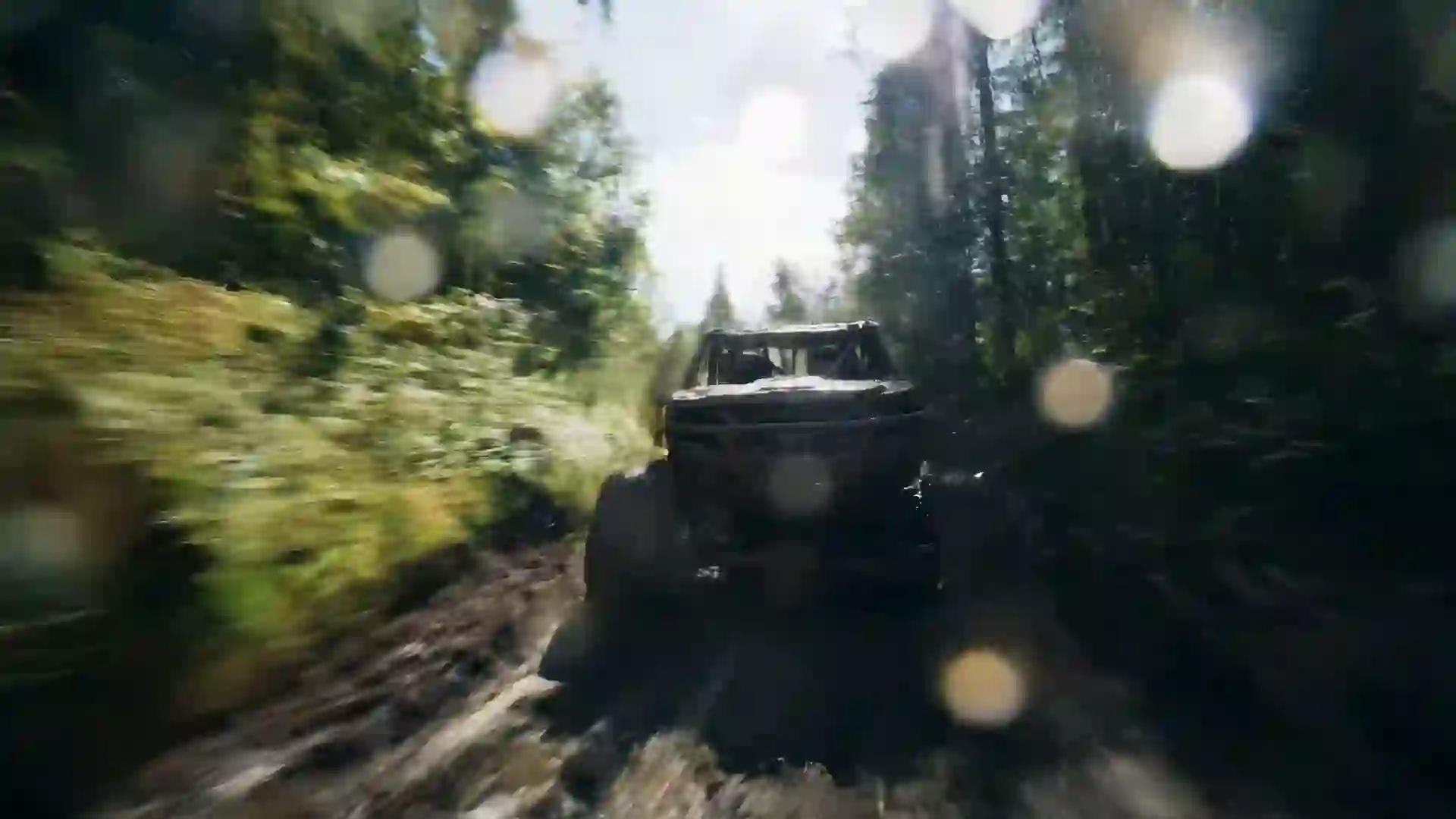

AI Story Video Generator
Turn every scene of your story into a cinematic shot, and make your first video free after you sign in.



From Written Story to Moving Pictures
The Veo 4 AI story video generator helps you turn a written story into a sequence of video shots. You break the story into scenes, describe each scene as a prompt, and the model renders it as a short cinematic clip with the characters, setting, camera and light you asked for. A fable, a personal memory, a fantasy adventure or a brand origin story can all become moving pictures this way. You do not need a crew, a set or animation skills, only a clear plan for what each moment should show.
To be clear about how it works: each generation is one shot, usually 4 to 10 seconds, and Wan 3.0 can go up to 30 seconds at 480p. The generator does not write a whole film in one click or assemble the edit for you. You generate the shots for your scenes, then join them in any video editor, where you add narration, music and titles. This shot-by-shot approach is how filmmakers already work, and it gives you control over every beat of the story. You decide what happens, in what order, and for how long.
The hardest part of AI storytelling is consistency, so the wizard gives you tools for it. Upload a reference image of your main character or setting and every shot can start from the same face, costume and place. Repeat a fixed character description in each prompt and keep one visual style throughout. Choose the model per scene: Veo 4 and Veo 3.1 for realistic drama and scenes where some models generate sound, Kling 3.0 and Hailuo 2.3 for stylized or animated stories, and Seedance 1.5 Lite for a free first test.
What the AI Story Video Generator Offers
These tools are in the wizard at the top of this page and work for every scene you write.
Scene prompts to video
Describe a single scene, with who is in it, what happens, where it takes place and how the camera sees it, and the model renders it as a cinematic clip. Writing one prompt per scene turns your outline into a shot list you can generate in order and review as you go.
Reference images for consistency
Upload a character portrait, a costume design or a location photo and use image-to-video. Each shot starts from your image, which keeps the hero's face, clothing and surroundings steady across scenes. This is the most reliable way to make a series of clips feel like one story.
A model for each kind of story
Choose from ten models in one form. Veo 4 and Veo 3.1 suit realistic drama and some models generate sound, Kling 3.0 and Hailuo 2.3 fit animated and stylized tales, Wan 3.0 runs clips up to 30 seconds, and Seedance 1.5 Lite is free for your first video.
AI Enhanced Prompt
Paste a line from your story, such as "the old fisherman finds a glowing bottle on the shore", and the enhancer turns it into a full shot description with camera, lighting and mood. You can edit the result so the details stay true to your characters and plot.
Formats for any audience
Generate 16:9 shots for YouTube stories and short films, 9:16 for story series on TikTok, Reels and Shorts, or 1:1 for square posts. Keep the same ratio and style for every scene in a project so the final edit cuts together without jarring changes in framing. Consistency matters more than variety here.
MP4 files ready to edit
Every shot downloads as an MP4 file, without a watermark on paid plans, ready to drop onto a timeline in the editor you already use. Credits are deducted before each generation, and failed generations are refunded, so retakes of a tricky scene stay affordable. Name files by scene number to stay organized.
Story Video Prompt Examples
Each prompt below is one scene from a different story; use them as patterns for your own shot list.
Opening: the lighthouse keeper
Cinematic establishing shot, an elderly lighthouse keeper in a yellow raincoat climbs the spiral stairs of a stone lighthouse at dusk, camera slowly cranes up alongside him, warm lantern light against a stormy blue sky outside the windows, realistic film look, quiet and lonely mood.
Inciting moment: the letter
Close-up drama scene, a young woman at a kitchen table opens an old envelope and freezes as she reads the letter inside, slow push-in on her face, soft morning window light, shallow depth of field, muted warm colors, natural realistic style.
Journey: crossing the desert
Epic wide shot, a lone traveler with a walking staff and a small fox companion crosses tall orange sand dunes under a huge pale sky, slow aerial drone pull-back revealing the endless desert, late afternoon sun with long shadows, cinematic adventure film look.
Fairy tale: the enchanted door
Storybook fantasy animation, a small boy in a red cloak pushes open a tiny wooden door in the roots of a giant oak and golden light spills out across his face, low-angle camera behind him, soft painterly textures, warm magical glow, sense of wonder.
Climax: the storm on the bridge
Dramatic action shot, two siblings hold hands as they run across a swaying rope bridge in heavy rain, lightning flashes behind the mountains, handheld camera follows from behind, cold blue light with bright white flashes, realistic cinematic style, intense tension.
Ending: the reunion
Emotional final scene, an old man and his grown daughter embrace on a train platform as steam drifts around them, slow orbit around the pair, golden hour sunlight through the station roof, gentle lens flare, warm nostalgic color grade, realistic film look.
How to Make a Story Video with AI
Plan the story first, then use the wizard at the top of this page for each scene.
- 1
Split your story into shots
Write a short list of the key moments: opening, problem, journey, climax, ending. Turn each moment into one prompt that names the character, the action, the place, the camera and the light. Use AI Enhanced Prompt to expand a plain sentence into a detailed scene description.
- 2
Lock your character and world
Upload a reference image of your main character or key location so each shot starts from the same design. Paste the same short character description into every prompt, including age, hair, clothing and one distinctive detail, to keep the hero recognizable.
- 3
Match style, ratio and length
Pick one style, filter and aspect ratio for the whole project, 16:9 for YouTube films or 9:16 for vertical story series. Set the duration per scene: short clips for quick beats, longer takes with Wan 3.0 for slow moments that need room to breathe.
- 4
Generate, review and edit
Choose a model, for example Veo 4 for realistic drama or Kling 3.0 for animated tales, and generate each scene. Download the MP4 files, place them in order in any video editor, then add narration, music and titles to finish the story.
Who Uses an AI Story Video Generator
Story videos serve writers, educators, brands and families alike.
Narrated story channels
YouTube and TikTok channels that tell fables, myths, history tales or short fiction need a visual for every paragraph. Generate a shot per beat, record your narration, and edit them together. A steady visual style across episodes helps viewers recognize your channel at a glance.
Authors promoting books
Turn the key scenes of a novel into a short book trailer. Generate the setting, a glimpse of the protagonist and a moment of tension, then add the title and a line of copy. A trailer gives readers a feel for the book without giving away the plot.
Brand and founder stories
Tell how a company started, what problem it solves or the journey of a product, using illustrative scenes instead of stock footage. Short cinematic shots of a workshop, a first prototype or a customer moment make an origin story easier to remember than text on a slide.
Teaching with stories
Teachers and course creators can bring historical events, literature passages or language-learning dialogues to life. A few short scenes show a setting or a turning point far faster than a description, and students can even write their own prompts as a creative writing exercise. Short scenes also hold attention well.
Short film previsualization
Filmmakers can block out a short film before shooting. Generate rough versions of key scenes with the angles and light you plan, cut them into an animatic and check the pacing. A visual draft makes it easier to share the vision with a crew or a funder.
Family and personal stories
Recreate a grandparent's memory of their village, an imagined adventure for a birthday or a story you tell every holiday. Written descriptions become scenes the whole family can watch. Add your own voice recording in an editor to turn it into a keepsake video. Older relatives often love it.
Storytelling Tips for AI Video
Write a shot list, not a script
Video models render images, not plot. Convert each story beat into a visual instruction: who is on screen, what they physically do, where they are and how the camera frames it. "She realizes the truth" is vague; "close-up as she drops the letter and looks up" is a shot.
Use a character anchor line
Write one fixed description for each main character, for example "a tall man in his sixties with a gray beard, a navy wool coat and a red scarf", and paste it into every prompt unchanged. Changing even small words between shots invites the model to redesign the character.
Vary the shot sizes
Real films alternate wide establishing shots, medium shots for action and close-ups for emotion. Plan your sequence the same way. A story built only from wide shots feels distant, and one built only from close-ups loses its sense of place. The edit needs both.
Keep one look for the whole story
Pick a single style and grade, such as realistic film with warm tones or storybook painterly animation, and repeat those words in every scene. Use the same model for the main sequence when you can, because different models interpret light and texture differently.
Let pacing come from the edit
Generate a little more than you need: two takes of key scenes and a few cutaways like hands, objects or landscapes. In the editor these extra shots let you control rhythm, cover jumps in continuity and give emotional moments time to land.
AI Story Video Generator FAQ
Answers to common questions about making story videos with AI.
Is there a free AI story video generator option?
New users get one free 5-second 480p video with Seedance 1.5 Lite after signing in, which lets you test one scene of your story. Paid plans unlock models such as Veo 4 and Kling 3.0, longer durations and higher resolutions. Credits are deducted before each generation and failed generations are refunded.
Can it turn a whole story into one video automatically?
No. Each generation produces one shot, usually 4 to 10 seconds, or up to 30 seconds at 480p with Wan 3.0. You create the shots scene by scene and then join them in any video editor, adding narration, music and titles there. This keeps you in control of the story's pacing and every visual choice.
How do I keep the same character in every scene?
Upload a reference image of the character and use image-to-video for each shot, so every clip starts from the same face and outfit. Also paste an identical character description into each prompt and keep one style. Results are much steadier with both methods together than with text alone. A simple background helps as well.
Which model is best for story videos?
For realistic drama, Veo 4 and Veo 3.1 are strong choices, and some models generate sound. For animated, storybook or stylized stories, try Kling 3.0 or Hailuo 2.3. Use Wan 3.0 for slow scenes that need up to 30 seconds. Many creators test one key scene on two models before they choose one for the whole project.
Can I add narration or dialogue?
Some models, including Veo 4 and Veo 3.1, can generate native audio such as ambient sound and short dialogue in a shot. There is no voice cloning, lip sync or music library, so for narration most creators record their own voice or use a separate tool, then add it in their editor.
How many shots do I need for a short story video?
A one-minute story usually needs about 8 to 15 shots, depending on how long each clip runs and how fast you cut. Start with the five core beats of opening, problem, journey, climax and ending, then add close-ups and cutaways to fill the gaps and smooth the transitions. Plan it on paper first.
What aspect ratio should I use for story videos on TikTok or YouTube?
Use 9:16 for TikTok, Instagram Reels and YouTube Shorts story series, and 16:9 for longer YouTube stories and short films. Pick 1:1 for square social posts. Keep the same ratio for every shot in a project so the scenes cut together cleanly in your editor. Decide before you generate the first scene.
Can I publish or sell story videos made with the generator?
Paid plans give you watermark-free MP4 downloads that creators use in channels, trailers and campaigns. Check the terms of service for usage rights before you publish or sell. If your story adapts someone else's book or characters, you also need permission from the rights holder. Original stories avoid that step.
Start Filming Your Story
Write your first scene and see it as a cinematic shot in minutes. New users get one free video after sign-in.
Last updated October 7, 2026 · By Long Cheng