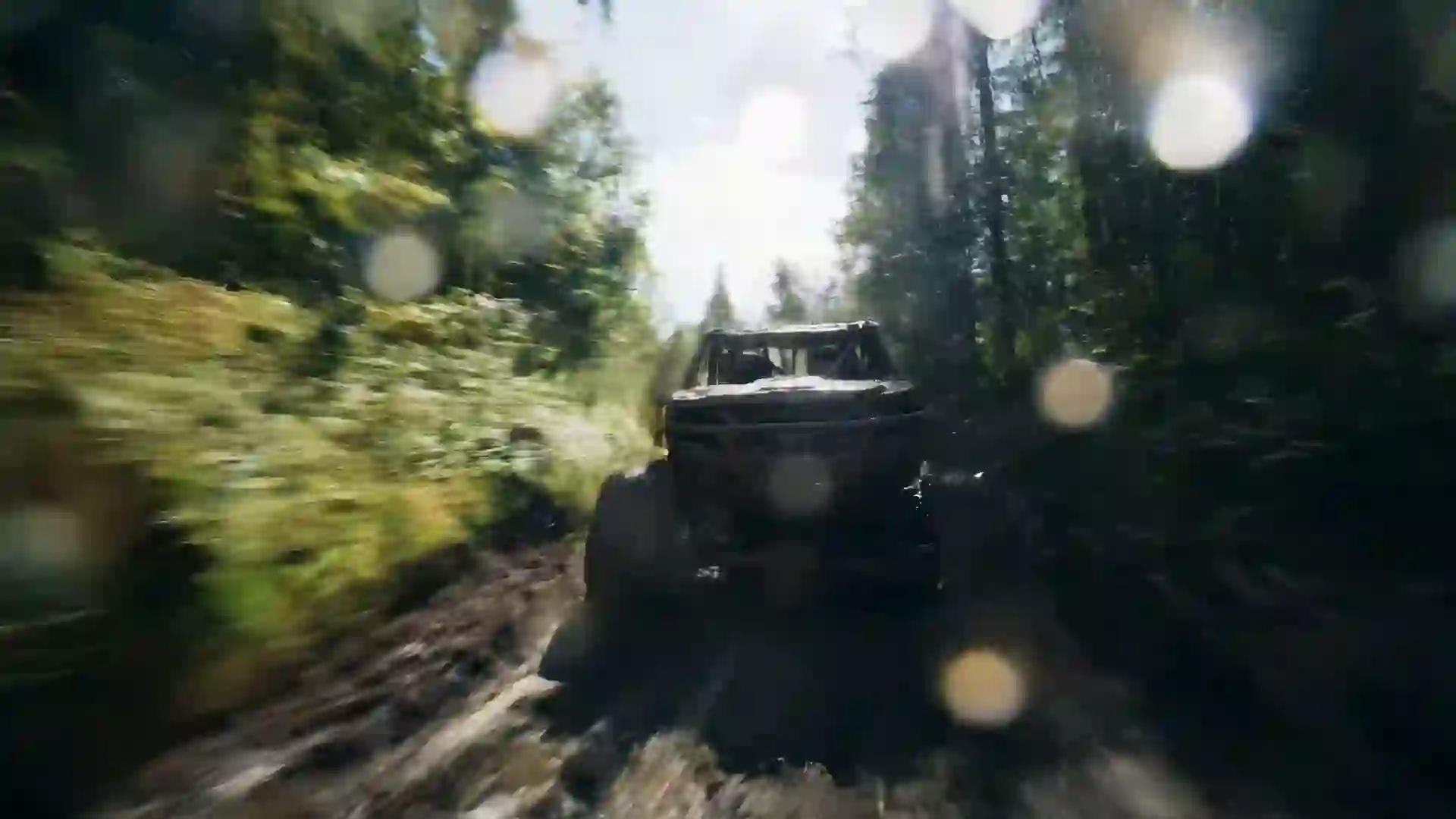

AI Product Video Generator
Turn one product photo into polished studio and lifestyle clips, and sign in to get one free 5-second video as a new user.



What Is an AI Product Video Generator?
An AI product video generator creates short motion clips that show a product the way a studio shoot would: a slow turntable spin, a macro pass over a texture, a bottle with water droplets under hard rim light, or a sneaker landing on wet pavement. On Veo 4 you can start from text, or upload a product photo and use image-to-video so the clip keeps the real shape, color and label of what you sell. Then you choose a style, aspect ratio and duration, pick a model and generate the clip.
Product video helps people buy because it answers questions a still photo cannot: how a fabric moves, how a cap opens, how big a bag looks on a shoulder. A traditional shoot needs a studio, lights, a turntable, props and an editor, and every new color or variant means another day. With generated clips you can test angles, backgrounds and moods in an afternoon and keep the ones that suit your store page, ads and social posts. Check every clip closely, since a model can change small details such as text, buttons or stitching.
Clips are short, usually 4 to 10 seconds, which fits product pages, ads and social loops. Wan 3.0 can go up to 30 seconds at 480p for a longer single shot. For a full product film, generate several clips, such as a hero shot, a detail shot and a lifestyle scene, and join them in any editor with your logo, price and text. Some models, such as Veo 4 and Veo 3.1, also generate sound. New users can test a product shot for free with one 5-second Seedance 1.5 Lite video after signing in.
Features of the Veo 4 AI Product Video Generator
Each control in the wizard helps you get product footage that is clean, accurate and ready for your store.
Product photo to video
Upload a clean packshot and use image-to-video to add motion while the product keeps its design. A white background photo can become a slow spin, a dramatic light sweep or a scene with the item on a marble counter. This is the fastest route from an existing catalog image to a moving shot.
Studio lighting by prompt
Write the lighting setup the way a photographer would: soft box from the left, hard rim light, gradient backdrop, reflections on black acrylic. The models respond to these terms, so you can produce a premium dark look for watches and perfume or a bright airy look for skincare and food.
Macro and detail shots
Close-ups sell quality. Ask for macro shots of a leather grain, a knit pattern, a ceramic glaze or bubbles rising in a drink. Short detail clips work as cutaways in longer ads and as the second or third media item on a product page, where shoppers look for craftsmanship.
Lifestyle scenes
Place the product in context: a coffee grinder on a sunny kitchen counter, a backpack on a mountain trail, a lamp in a cozy reading corner. Lifestyle clips help shoppers picture the item in their own life, and you can test several settings to see which one fits your brand.
Models matched to the job
Veo 4 and Veo 3.1 give realistic materials, reflections and optional sound. Kling 3.0 and Hailuo 2.3 handle dynamic motion such as splashes, falling objects and quick camera moves. Wan 3.0 gives up to 30 seconds at 480p for long spins. Seedance 1.5 Lite is the free model for tests.
Ready for every store and ad format
Generate 1:1 for product pages and marketplace galleries, 9:16 for Stories, Reels and TikTok, and 16:9 for website banners and YouTube. Paid plans download MP4 files with no watermark, so you can upload them directly to your store or ad manager after adding text in an editor.
Product Video Prompt Examples
Paste a prompt into the wizard, swap in your own product, and adjust the background and light.
Perfume on black acrylic
A glass perfume bottle with a gold cap stands on glossy black acrylic, a slow 180 degree orbit around it reveals its facets. Hard rim light from behind, soft fill from the front, subtle reflections, dark gradient background, premium commercial product style.
Sneaker splash
A white running sneaker drops in slow motion onto a shallow puddle on a dark street, water splashing outward in sharp droplets. Low angle close-up at ground level, cool blue street light with a warm backlight, high contrast, dynamic commercial style.
Skincare morning light
A frosted glass serum bottle with a dropper sits on a white stone tray beside eucalyptus leaves, morning sunlight and leaf shadows moving across it. Slow push-in, soft natural light, clean pastel palette, minimal bright product photography style.
Watch macro detail
Extreme macro shot gliding across a steel wristwatch dial, the second hand ticking past polished indices and a sapphire crystal catching light. Slow lateral slider movement, shallow depth of field, cool neutral lighting, dark background, luxury product style.
Coffee bag on a counter
A kraft paper coffee bag stands on a wooden kitchen counter next to a steaming cup, coffee beans spill slowly from the open top. Static medium shot, warm morning window light, steam rising, cozy natural colors, lifestyle product video style.
Headphones turntable spin
Matte black over-ear headphones rotate slowly on a white turntable against a seamless light gray backdrop, revealing the cushions and the folding hinge. Locked-off camera at eye level, even soft box lighting, clean shadows, minimal e-commerce studio style.
How to Create a Product Video with AI
Use the wizard at the top of this page to go from a product photo to a finished clip.
- 1
Upload your product photo
Start with a sharp, well-lit photo of the product on a plain background and upload it as a reference image for image-to-video. The model uses it to keep the shape, color and branding. You can also skip the upload and describe the product in text only.
- 2
Describe the shot
Write the camera move, the surface, the background and the light, for example a slow orbit on black acrylic with rim light. Turn on AI Enhanced Prompt for a richer description, and remove any added props that do not fit your brand or product.
- 3
Pick style, ratio and duration
Choose a clean style and a neutral filter so colors stay true to the real product. Select 1:1 for product pages, 9:16 for Stories and TikTok, or 16:9 for banners. Set the composition and a duration that gives the camera move enough time.
- 4
Choose a model and generate
Use Veo 4 or Veo 3.1 for realistic materials, or Kling 3.0 and Hailuo 2.3 for dynamic splashes and motion. Credits are deducted at the start and refunded if a generation fails. Check the logo and small details, then download the MP4.
Who Uses an AI Product Video Generator
Sellers of every size use short product clips across stores, ads and social channels.
Online store product pages
Add a short spin or detail clip as the first or second media item on a product page. Motion draws the eye in a gallery of still photos and shows texture and scale. Generate one clip per color variant from your existing packshots instead of booking a reshoot.
Marketplace listings
Sellers on large marketplaces compete with hundreds of similar listings. A clean 1:1 product video that shows the item from several angles helps a listing look more complete and trustworthy. Keep the background plain and the product centered so it meets common marketplace image guidelines.
Paid social ads
Performance marketers need many creative variations to find a winner. Generate the same product on five backgrounds or with five camera moves, add your headline and offer in an editor, and test them against each other. Replace the losers with new variants every week to keep results fresh.
Product launches and drops
Build anticipation for a new release with dark teaser shots: a silhouette under a moving light, a slow reveal of the logo, a macro of a new material. Post them on the days before launch, then follow up with a full lifestyle clip on release day.
Crowdfunding campaigns
Before mass production, you may only have a prototype and renders. Image-to-video can turn a render or a prototype photo into motion for a campaign page or pitch video. Show the product honestly and avoid shots that suggest features the final product will not have.
Email and website banners
A short looping clip at the top of a newsletter landing page or homepage makes a seasonal collection feel alive. Generate wide 16:9 clips with space on one side for a headline, then add your text and button in your website builder or video editor of choice.
Tips for Better AI Product Videos
Start from the best photo you have
Image-to-video copies what it sees, including blur, dust and harsh shadows. Use a sharp, evenly lit packshot with the product filling most of the frame. A clean source photo is the single biggest factor in keeping your logo, label and colors accurate in the generated clip.
Keep the camera move simple
One slow move per clip works best for products: an orbit, a push-in, a slide or a tilt. Complex moves increase the chance that the product warps or its label changes. If you need several angles, generate several short clips and cut them together in your editor.
Describe materials precisely
Name the material and finish: brushed aluminum, matte ceramic, frosted glass, full-grain leather, glossy plastic. The model uses these words to render reflections and texture. Vague words such as nice or premium do little, while a precise material description changes the result.
Choose light for the category
Use dark backgrounds with rim light for luxury items, electronics and drinks. Use soft daylight and pale backgrounds for skincare, baby products and food. Use bold color backdrops for streetwear and toys. Matching light to the category makes clips look like they belong in that aisle.
Leave room for text
Ads and banners need space for a headline, a price or a button. Ask for the product placed on the left or right third of the frame, or centered low, with empty background around it. This saves you from covering the product when you add text in an editor.
AI Product Video Generator FAQ
Answers to common questions from sellers and marketers who make product videos with AI.
Is the AI product video generator free?
New users get one free 5-second 480p video with Seedance 1.5 Lite after signing in, which is enough to test how a product photo animates. Paid plans unlock Veo 4, Veo 3.1, Kling 3.0 and the other models, plus longer durations and higher resolutions. Credits are deducted before generation and refunded if a generation fails.
Will the video keep my product's exact design and logo?
Image-to-video keeps the overall shape, color and branding well when you start from a sharp photo, but small text and fine details can drift, especially during big camera moves. Use simple, slow moves, check each clip frame by frame, and regenerate if a label or logo changes. Do not publish a clip that misrepresents the real product.
Which model is best for product videos?
Veo 4 and Veo 3.1 are good choices for realistic materials, reflections and lighting, and they can add sound. Kling 3.0 and Hailuo 2.3 handle dynamic shots such as splashes, falling items and fast motion. Wan 3.0 is useful for long spins of up to 30 seconds at 480p. Seedance 1.5 Lite is the free option for tests.
How long are product videos?
Most clips are 4 to 10 seconds, which suits product pages, ads and social loops. Wan 3.0 can produce up to 30 seconds at 480p. For a longer product film, generate a hero shot, detail shots and a lifestyle scene, then join them in any video editor with your logo, music and text. Veo 4 has no built-in timeline editor.
What aspect ratio is best for a store or TikTok?
Use 1:1 for most product pages and marketplace galleries. Use 9:16 for TikTok, Instagram Reels, Stories and YouTube Shorts. Use 16:9 for website banners, YouTube and presentations. Select the ratio before generating so the model frames the product for that shape and does not cut off any part of it.
Can product videos include sound?
Some models, such as Veo 4 and Veo 3.1, can generate sound such as a cap clicking, liquid pouring or ambient room tone. Other models produce silent clips. Veo 4 has no music library or voice cloning, so most sellers add licensed music or a recorded voiceover in their editor. Many product clips also play muted on store pages.
Can I make a video without a product photo?
Yes. You can describe the product in text, which works for concept tests, mood clips and generic items. For selling a specific product, a reference photo gives far more accurate results, because the model otherwise invents the design. Use text-only clips for backgrounds, scenes and ideas rather than as a literal picture of your item.
Can I use the videos in ads and on my store?
Paid plans download MP4 files with no watermark, which sellers commonly use on product pages and in ads. Check the terms of service for the usage rights that apply to your plan, and follow each ad platform's rules on accurate product representation. Only upload product photos you own or have permission to use.
Make Your Product Move
Upload a product photo, describe the shot and generate a clip for your store or next ad. New users get one free video after signing in.
Last updated October 7, 2026 · By Long Cheng